Follow the steps below to setup Google Sync on your iPhone, iPad, or iPod Touch.
Requirements and Backing Up Data
- Google Sync is only supported on Apple iOS versions 3.0 and above. You can check your current version by going to Settings > General > About > Version. If you're running an iOS before 3.0, upgrade to the latest iOS on Apple's site: http://www.apple.com/ios/ before setting up Google Sync.
- Check your Safari cookies settings to see if it is set to "From Visited" or "Always". If it's set to "Never", you're more likely to be prompted to solve the CAPTCHA.
- Perform a sync with iTunes to ensure that Contacts and Calendars from your iOS device are backed up to your computer. Learn more about backing up your Contacts and Calendars.
- If your business, school, or organization uses Google Apps, your administrator will need to haveGoogle Sync enabled before you can take advantage of this feature. Note that after you set up Google Sync, your administrator may also have additional device management capabilities (such as remote wipe or password requirements). Click to learn more or contact your administrator.
Getting Started
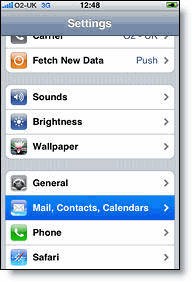
1. Open the Settings application on your device's home screen.
2. Open Mail, Contacts, Calendars.
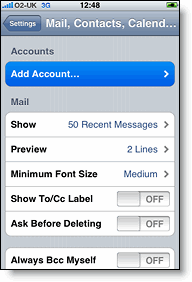
3. Press Add Account....
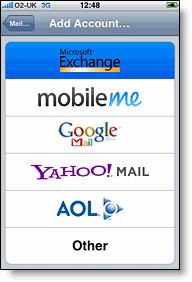
4. Select Microsoft Exchange. iOS 4.0+ allows multiple Exchange accounts. However, if you're on a device that doesn't let you add a second account, you could also use CalDAV to sync Google Calendar and IMAP to sync Gmail.
Enter Account Info
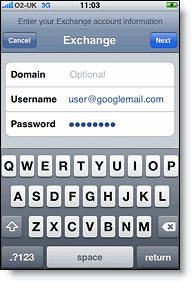
5. In the Email field, enter your full Google Account email address. If you use an @googlemail.com address, you may see an "Unable to verify certificate" warning when you proceed to the next step.
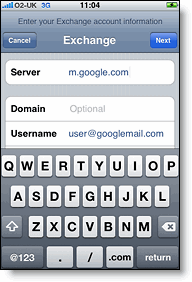
6. Leave the Domain field blank.
7. Enter your full Google Account email address as the Username.
8. Enter your Google Account password as the Password.
Notes about passwords:
9. Tap Next at the top of your screen.
9a. Choose Cancel if the Unable to Verify Certificate dialog appears.
10. When the new Server field appears, enter m.google.com.
11. Press Next at the top of your screen again.
Enable Mail, Calendar, and Contacts
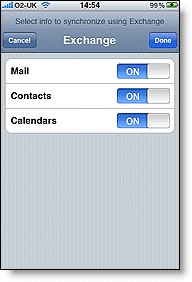
12. Select the Google services (Mail, Calendar, and Contacts) you want to sync. To receive and respond to meeting requests on your device, both Mail and Calendar need to be turned on, and New events needs to be enabled in your Google Calendar settings.
To enable 'New events', sign in to your Google Calendar using the web browser on your phone or computer. Go to Calendar Settings > Calendars > Click on the Notifications for the calendar you want to sync. Under Email check 'New events' (and any of the other Invitation settings you want enabled e.g. changed events, cancelled events, event responses), and click Save.
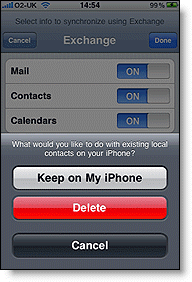
13. There are three options for keeping your contacts synced. You can keep your device’s contacts and sync just your My Contacts group, you can sync only Google Contacts and wipe your device’s contacts or you can merge your contacts via iTunes and sync only the contacts that stream with your phone.
13a. If you would like to keep your existing contacts on your device select the Keep on my iPhone (or iPad or iPod touch) option when prompted. This will also allow you to keep syncing with your computer via iTunes. If you choose to keep existing contacts, you will sync the contents of the My Contacts group.
13b.If you have all your contacts in Google and you want to start syncing them to your device and don’t want to keep the contacts on your phone, tap Delete Existing Contacts. If there are no contacts on your phone, the contents of your All Contacts group will be synced.
13c. If you have all your contacts on your device and want to import them into Google, you can synchronize your Google Contacts with iTunes. All Contacts and Calendars that you sync with iTunes will be put into the On My iPhone Contacts and Calendar groups on your phone. The iPhone currently doesn't allow you to move Contacts or Calendar events from the On My iPhone groups to the Google Sync groups.
Note: Google Sync is only supported on iPhone OS versions 3.0 and above. Please upgrade to iPhone OS 3.0 before setting up Google Sync.
 You've set up Google Sync! Synchronization will begin automatically if you have Push enabled on your device. You can also open the Mail, Calendar, or Contacts app and wait a few seconds to start a sync.
Next see Using Google Sync with iOS Calendar.
You've set up Google Sync! Synchronization will begin automatically if you have Push enabled on your device. You can also open the Mail, Calendar, or Contacts app and wait a few seconds to start a sync.
Next see Using Google Sync with iOS Calendar.
Experiencing setup or sync issues? See the
Known Issues page.


